Understanding Git and GitHub: The Foundation of Version Control
By Emmanuel Chinonso - Frontend Engineer and Technical Writer at Windframe
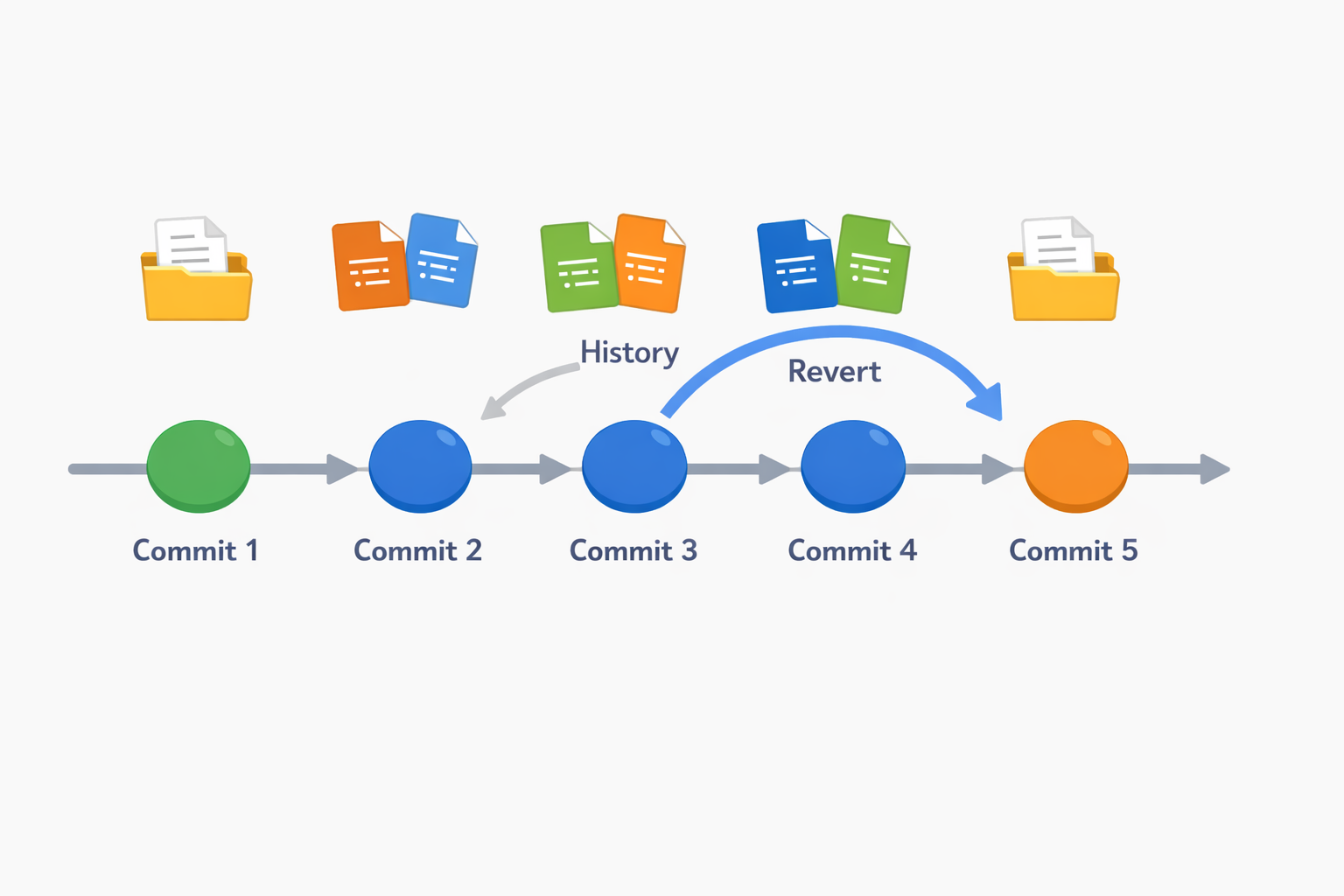
Version control has become a cornerstone of modern software development, and at the heart of it are Git and GitHub. These tools help track changes in code, collaborate with others, and manage projects efficiently. Git handles the local side of things, while GitHub extends that to the online world, making sharing and teamwork possible. This guide breaks down both, starting from the very beginning for those new to the concepts, and building up to more complex features. We'll cover installations, key commands, workflows, and tips drawn from real-world use, all explained in straightforward terms.
Understanding Git: The Foundation of Version Control
Git is a system designed to record changes in files over time. Created by Linus Torvalds in 2005 for Linux kernel development, it has since become the go-to for developers worldwide. At its core, Git lets you save snapshots of your project at different points, so you can revisit or revert if something goes wrong.
Think of it like a time machine for your code. Instead of overwriting files or creating endless copies like "project_final_v3_copy.docx," Git tracks differences efficiently.
This means you can experiment freely without fear of losing work. Key concepts include repositories (repos), which are folders where Git monitors files; commits, which are saved versions with messages; and branches, which allow parallel development paths.
To get a feel, consider a simple text file project. You edit it, commit the change, and Git stores just the differences, not full copies each time. This keeps things lightweight.
For more on Git's origins and basics, the official documentation offers a solid starting point.
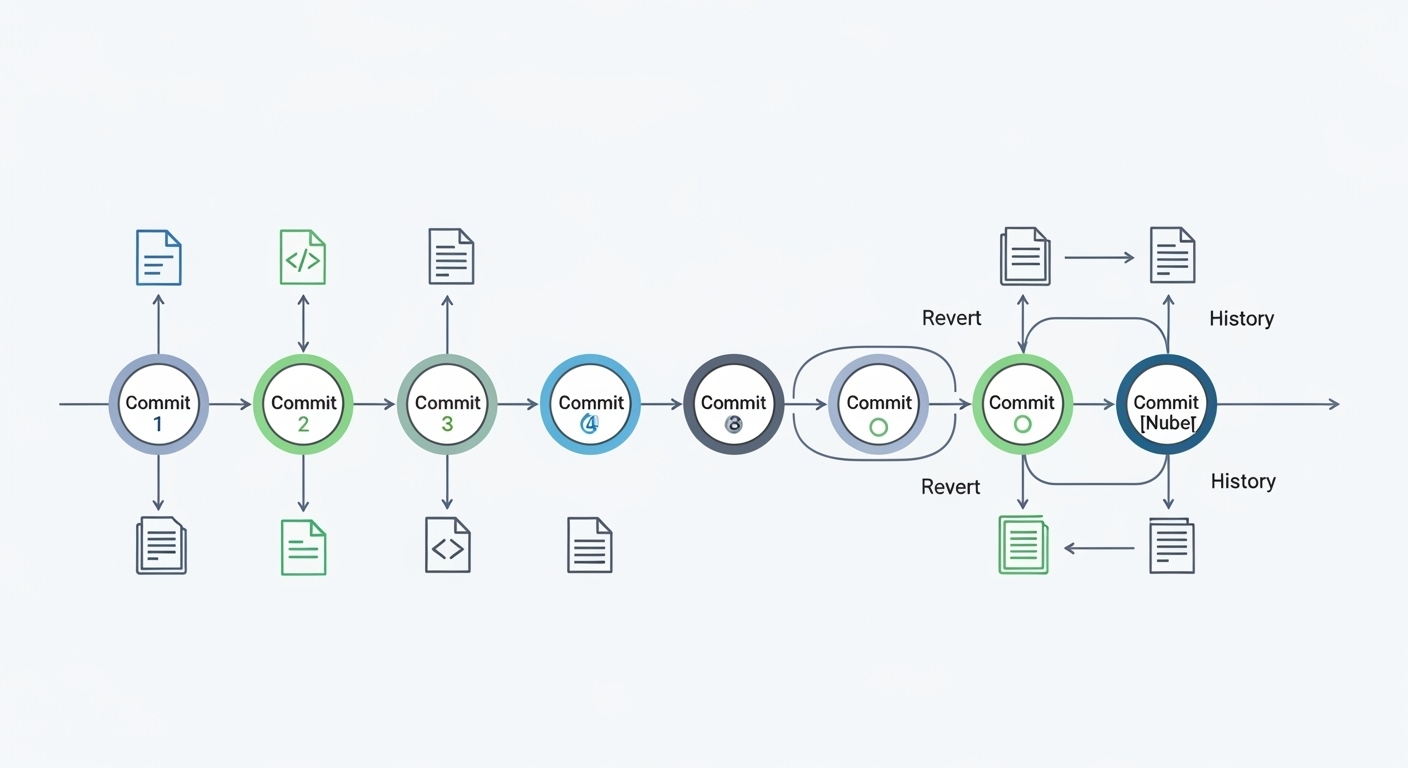
Installing Git and Setting Up Your Environment
Before using Git, you need it on your machine. Download from the official site, choosing your operating system.
For Windows, it includes Git Bash, a command-line tool. Mac users can use Homebrew with brew install git, and Linux folks often have it via package managers like apt install git on Ubuntu.
After installation, verify with git --version in your terminal. Set your identity next, as Git attaches this to commits:
1git config --global user.name "Your Name"2git config --global user.email "your.email@example.com"
This global setup applies to all projects. For a specific repo, drop the --global flag.
Choose an editor too, like git config --global core.editor "code --wait" for VS Code. This helps when editing commit messages or resolving conflicts.
Common setups include integrating with IDEs like Visual Studio Code, which has built-in Git support. Enable extensions for visual diffs and staging.
If installation stumps you, freeCodeCamp's tutorial walks through it nicely here.
Basic Git Commands: Your Daily Toolkit
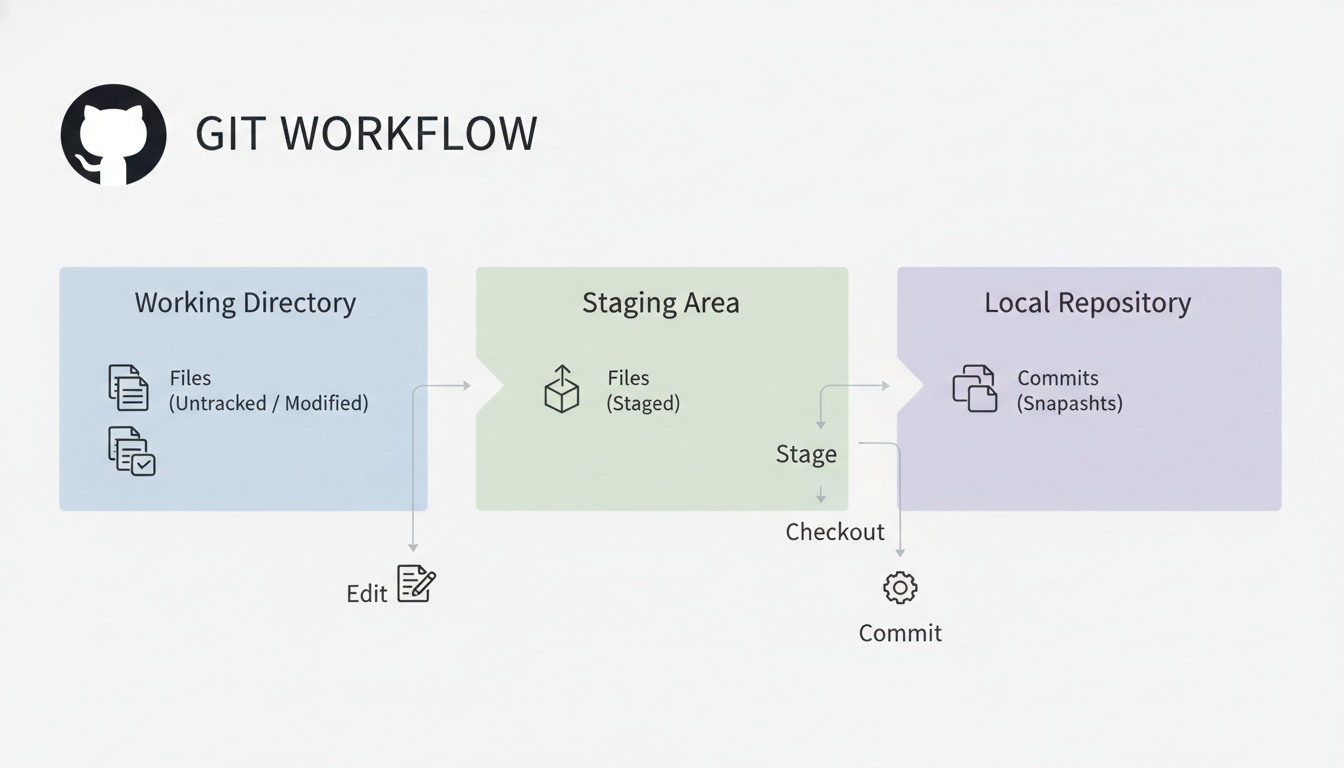
With Git ready, initialize a repo in a project folder:
1git init
This creates a .git subdirectory holding the repo's data.
Add files to track:
1git add filename.txt
Or everything:
1git add .
Staging prepares changes for commit.
Check status anytime:
1git status
Commit with a message:
1git commit -m "Add initial file"
View history:
1git log
Or a compact version: git log --oneline.
To ignore files like logs, create .gitignore with patterns, e.g., "*.log".
Undo staging: git restore --staged file.txt.
Revert commits: git revert HEAD for the last one.
These form the workflow: edit, add, commit. Practice on a test folder to build confidence. HubSpot's step-by-step covers this well here.
Branching and Merging: Working on Features Safely
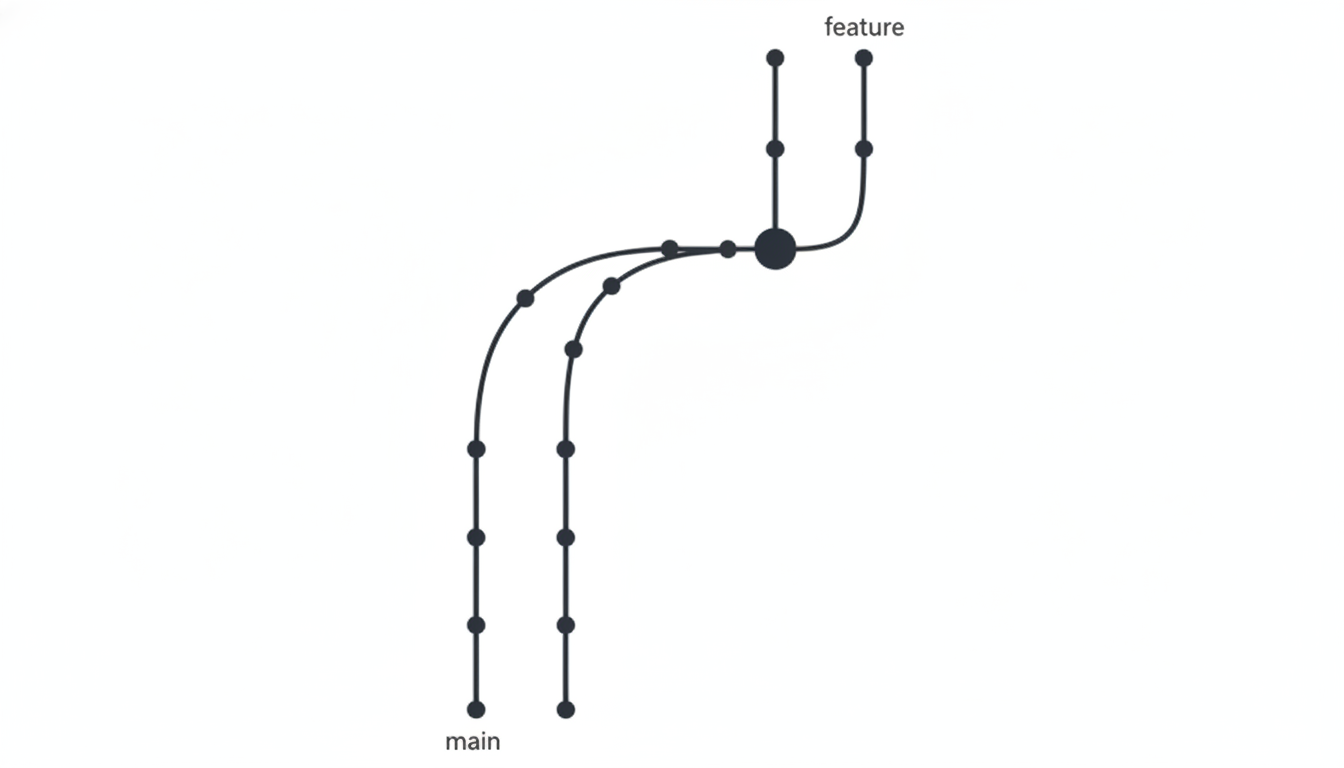
Branches let you develop features or fixes separately. Main (formerly master) is the default. Create one:
1git branch feature-branch
Switch:
1git checkout feature-branch
Or combined: git checkout -b feature-branch.
Commit changes here. To integrate:
1git checkout main2git merge feature-branch
Merges combine histories. If conflicts arise, Git flags them in files with markers like <<<<<< HEAD >>>>>>>>. Edit to resolve, then add and commit.
Delete branches post-merge: git branch -d feature-branch.
This isolates work, crucial for teams. As teams grow, manually managing branches becomes error-prone, which is why many teams automate Git branching workflows to enforce consistency and speed up collaboration.
What is GitHub? Extending Git to the Cloud
GitHub is a platform hosting Git repos online, founded in 2008 and now owned by Microsoft. It adds collaboration, issue tracking, and more beyond local Git.
Sign up at github. Create a repo via the + icon, naming it and optionally adding README.md for descriptions.
Link local to remote:
1git remote add origin https://github.com/username/repo.git2git push -u origin main
Push uploads commits. Pull fetches: git pull origin main.
Clone others' repos: git clone url.
GitHub differs from Git: Git is the tool, GitHub the service. Alternatives include GitLab, Bitbucket. Reddit threads often clarify this here.
Collaboration Basics: Pull Requests and Issues
GitHub shines in teamwork. Issues track bugs or ideas, create one with a title and description, assign labels like "bug" or "enhancement".
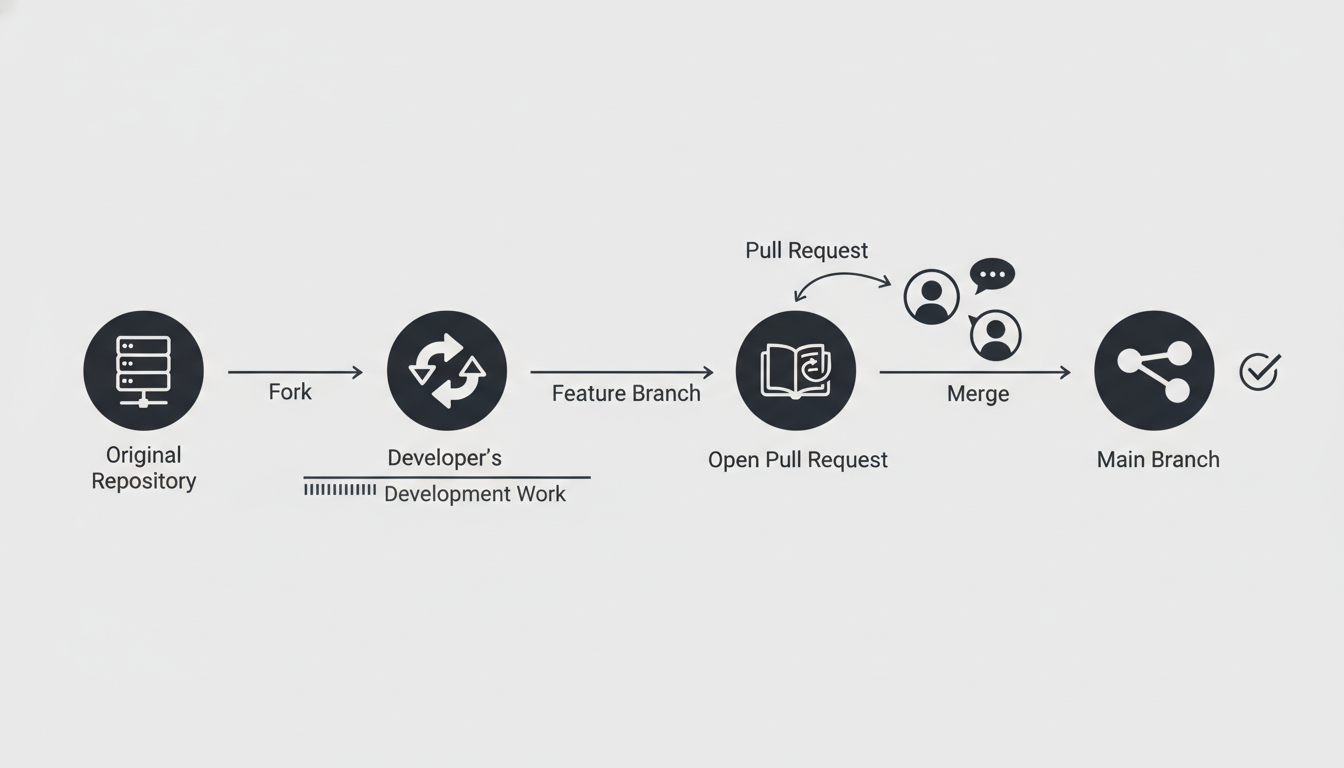
For changes, use pull requests (PRs). Fork a repo, make a branch, commit, push to your fork, then open a PR to the original. The owner reviews, discusses, and merges.
To review: Comment on code, suggest changes. Once approved, merge, squash commits for a clean history if needed.
This workflow keeps code quality high. HubSpot's tutorial nails it here.
Moving to Advanced Git: Beyond the Basics
Now that basics are down, let's level up Git. Advanced commands fix mistakes, optimize history, and handle complex scenarios.
First, rebase. It's like merge but rewrites history for a linear flow. On your feature branch:
1git rebase main
This applies your commits on top of main's latest. Careful, don't rebase shared branches, as it changes commit IDs.
Interactive rebase is powerful:
1git rebase -i HEAD~3
This opens an editor to squash, edit, or drop last 3 commits. Great for cleaning before pushing.
Cherry-pick grabs a specific commit from another branch:
1git cherry-pick commitID
Useful for hotfixes.
Bisect finds buggy commits. Start with:
1git bisect start2git bisect bad # current is bad3git bisect good commitID # known good commit
Git checks out midpoints; mark good/bad until it pins the culprit.
Reflog shows everything, even deleted stuff:
1git reflog
Recover a lost commit:
1git checkout commitID
Submodules embed other repos:
1git submodule add https://github.com/other/repo
Update with git submodule update.
These from Atlassian's advanced tutorials here. And Earthly's list of commands here. Let's expand on reset, it's tricky but useful. Soft reset moves HEAD but keeps changes staged:
1git reset --soft HEAD~1
Hard reset discards everything:
1git reset --hard HEAD~1
Use with caution!
-
Word diff in logs:
git diff --word-diffhighlights word changes, not lines. -
Partial staging:
git add -plets you pick hunks to stage. -
Orphan branches for clean starts:
git checkout --orphan newbranchThese streamline daily work. -
For undoing,
git revert commitIDcreates a new commit undoing the old one, safer for shared repos. -
Blame shows who changed what:
git blame file.txt -
And stash for temporary saves:
git stash, thengit stash pop. You can check out this post for more details on Github commands.
Advanced GitHub Features: Power Tools for Pros
GitHub isn't just storage; it's a full platform. Advanced features include Actions for automation, Copilot for AI coding help, and security tools.
- GitHub Actions: Build workflows in
.github/workflows/.ymlfiles. For CI/CD. If you’re new to automation, it helps to first understand what a CI/CD pipeline is and how it fits into modern development workflows.
1name: CI2on: [push]3jobs:4 build:5 runs-on: ubuntu-latest6 steps:7 - uses: actions/checkout@v28 - name: Run tests9 run: npm test
This runs tests on pushes. Automate deployments, linting, more. GitHub Actions is popular for its tight GitHub integration, but some teams still prefer Jenkins depending on scale and infrastructure.
GitHub's blog has examples here.
-
Copilot: AI assistant in your editor. Suggests code, explains functions. Advanced uses: Generate tests or refactor. Microsoft's training covers it here.
-
Advanced Security: For paid plans, scans code for vulnerabilities, secrets. Enable in repo settings.
-
Branch protections: Require reviews before merges, status checks.
-
Projects: Kanban boards for task management.
-
Wikis and Pages: Host docs or sites from your repo.
-
Codespaces: Cloud IDEs for instant dev environments.
-
Dependabot: Auto-updates dependencies. From docs here.
-
Strategies like Git Flow: Main for production, develop for next release, feature branches.
- Trunk-based: Short-lived branches, frequent merges.
- GitHub Flow: Branch from main, PR when ready.These from the features overview here.
Best Practices: Tips from the Trenches
To wrap up the advanced stuff, some golden rules:
- Commit often, but meaningfully. Small changes are easier to review.
- Write good commit messages: "Fix bug in login" > "Update".
- Use
.gitignorefor files like logs or secrets. - Pull before pushing to avoid conflicts.
- Review PRs thoroughly.
- Tag releases: git tag v1.0
- Use hooks for pre-commit checks.
For security, never commit keys, use env vars.
Common mistakes and Solutions
-
Force pushing (git push -f), only as last resort.
-
Back up repos regularly. For teams, define workflows early.
Troubleshooting: When Things Go Wrong
Stuck? git status is your friend. Merge conflicts? Edit the <<<<<< markers.
Remote issues? Check git remote -v.
Forgot password? Update credentials. This reddit's intro has some really helpful tips.
Project Ideas to Practice
- Personal site: Init, add pages, branch for styles, deploy Pages.
- Todo app: Collaborate via PRs.
- Open-source contribution: Fork, fix, PR.
- CI pipeline: Test Node app on push.
Final Thoughts: Keep Practicing
Git and GitHub offer endless possibilities for efficient coding. From basic commits to automated workflows, practice consistently. We've journeyed from Git init to advanced GitHub automations. It's a lot, but start small. practice on a dummy repo. Soon, it'll be second nature.
Windframe is an AI visual editor for rapidly building stunning web UIs & websites
Start building stunning web UIs & websites!