GitHub Actions vs. Jenkins: Choosing the Right CI/CD Tool for Your Projects
By Emmanuel Chinonso - Frontend Engineer and Technical Writer at Windframe
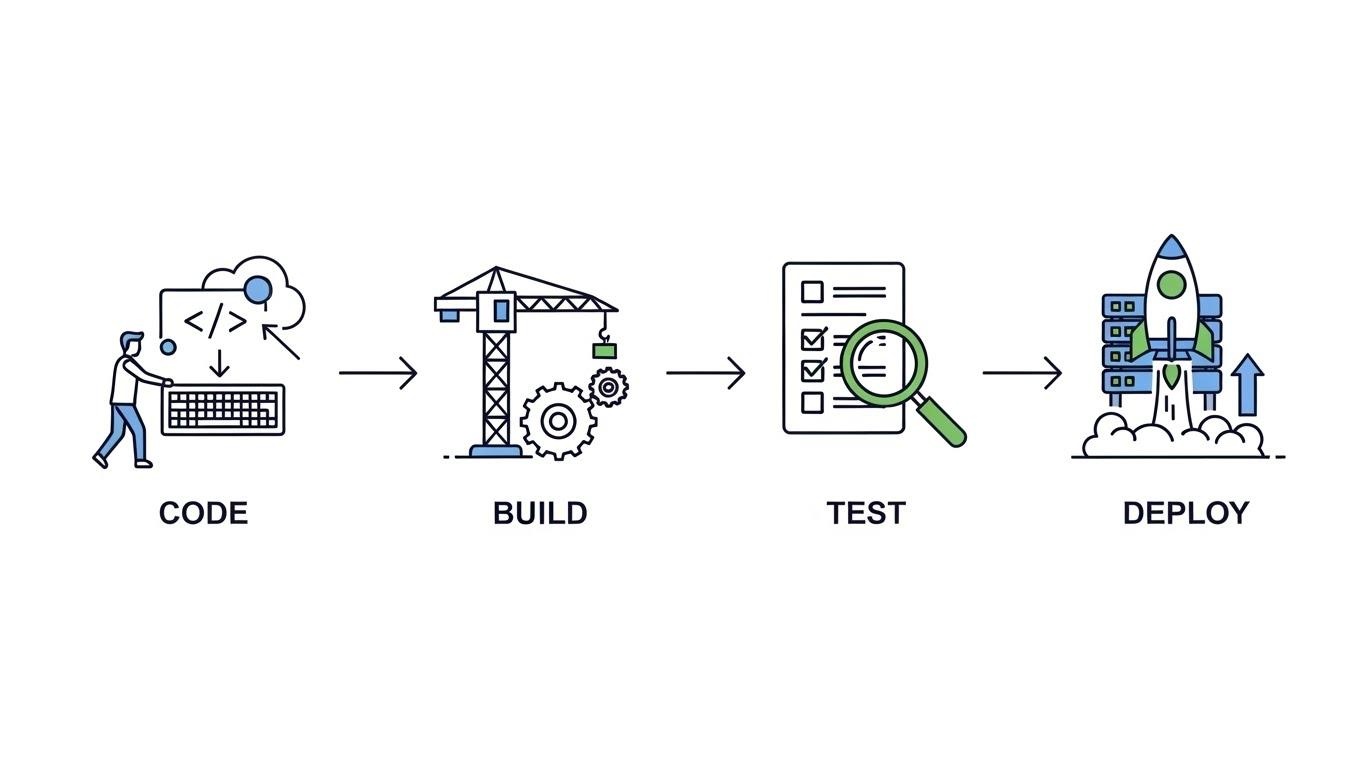
In modern software development, automation plays a critical role. Developers who once manually built, tested, and deployed code now rely on tools that can do those tasks automatically each time the code changes. This process, known as Continuous Integration and Continuous Delivery (CI/CD), helps teams catch bugs early, deliver features faster, and maintain higher confidence in their software releases.
Two CI/CD tools that often come up in discussions are GitHub Actions and Jenkins. Both tools help automate workflows, but they work in different ways, have different strengths and weaknesses, and are suitable for different teams and projects.
In this article, we’ll cover what each tool is, their strengths and weaknesses, Their key differences, When one may be a better choice than the other, Real-world considerations for teams of different sizes. By the end, you'll have a clear picture to help you decide.
What is CI/CD and Why Does It Matter?
Before we jump into the tools, let's make sure we're on the same page about CI/CD. Imagine you're baking a cake. Continuous Integration (CI) is like mixing ingredients and testing the batter every time you add something new, it ensures nothing goes wrong early on. Continuous Delivery (CD) takes it further by getting that cake ready to serve at a moment's notice, automating the packaging and delivery so you can release it whenever you're ready.
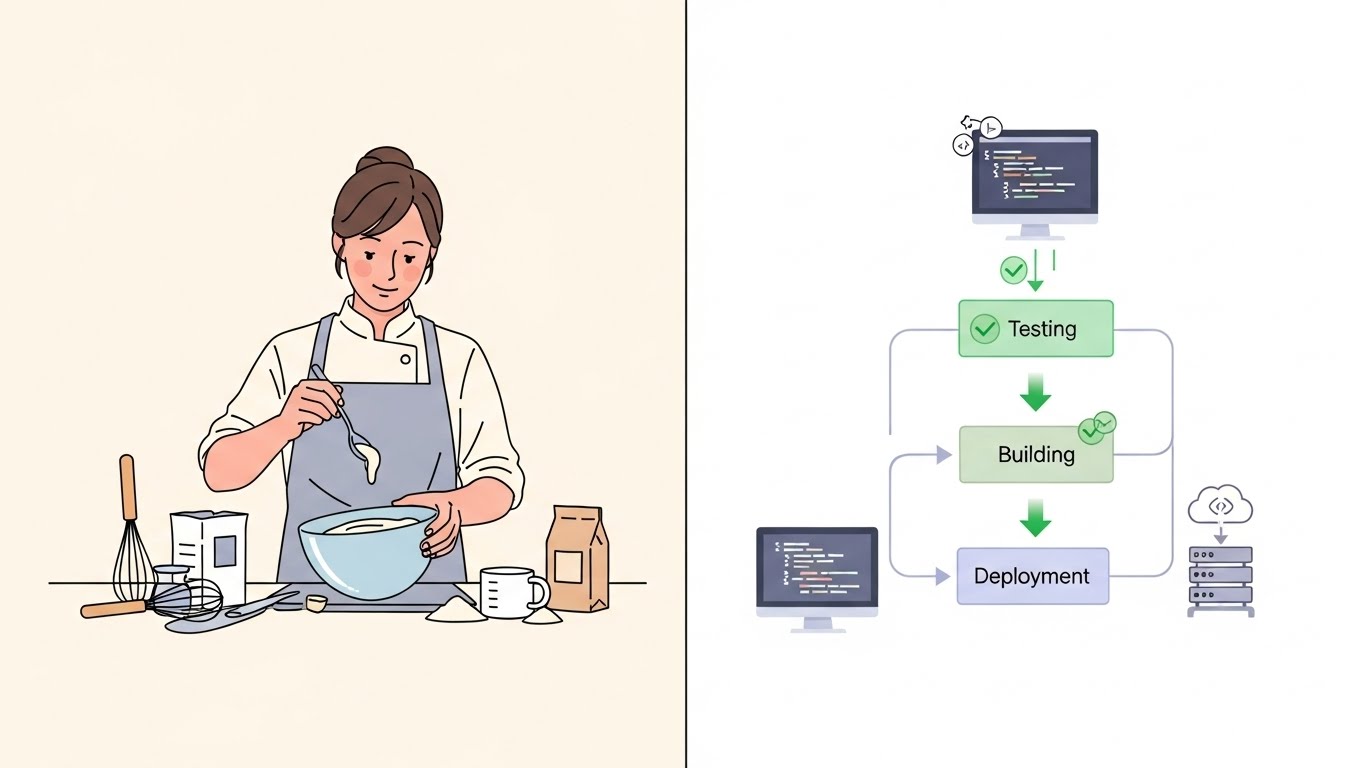
In software terms, Continuous Integration (CI) means automatically building and testing code whenever developers push changes to a shared repository. This makes it easier to catch problems quickly and ensures that all code changes integrate smoothly. Continuous Delivery (CD) takes this further by automatically deploying validated code changes to testing or production environments. When CI and CD work together, teams can move from writing code to delivering features with minimal manual steps. Tools like GitHub Actions and Jenkins handle these tasks, but they do it in their own unique ways.
According to recent industry reports, over 70% of development teams now use some form of CI/CD, and adoption is only growing as remote work and cloud-native apps become the norm.
It's not just for big companies anymore; even hobbyists are using it to streamline their GitHub repos.
Meet Jenkins: The Veteran Automation Server
Jenkins has been around the block, it's like that reliable old truck that's seen every road. Originally forked from Hudson in 2011, Jenkins is an open-source automation server that's become a staple in the DevOps world. It's maintained by a massive community under the Continuous Delivery Foundation, and it's used by everyone from startups to Fortune 500 giants. It was designed to be highly flexible and extensible, letting teams build pipelines that reflect even the most complex workflows.
How Jenkins Works
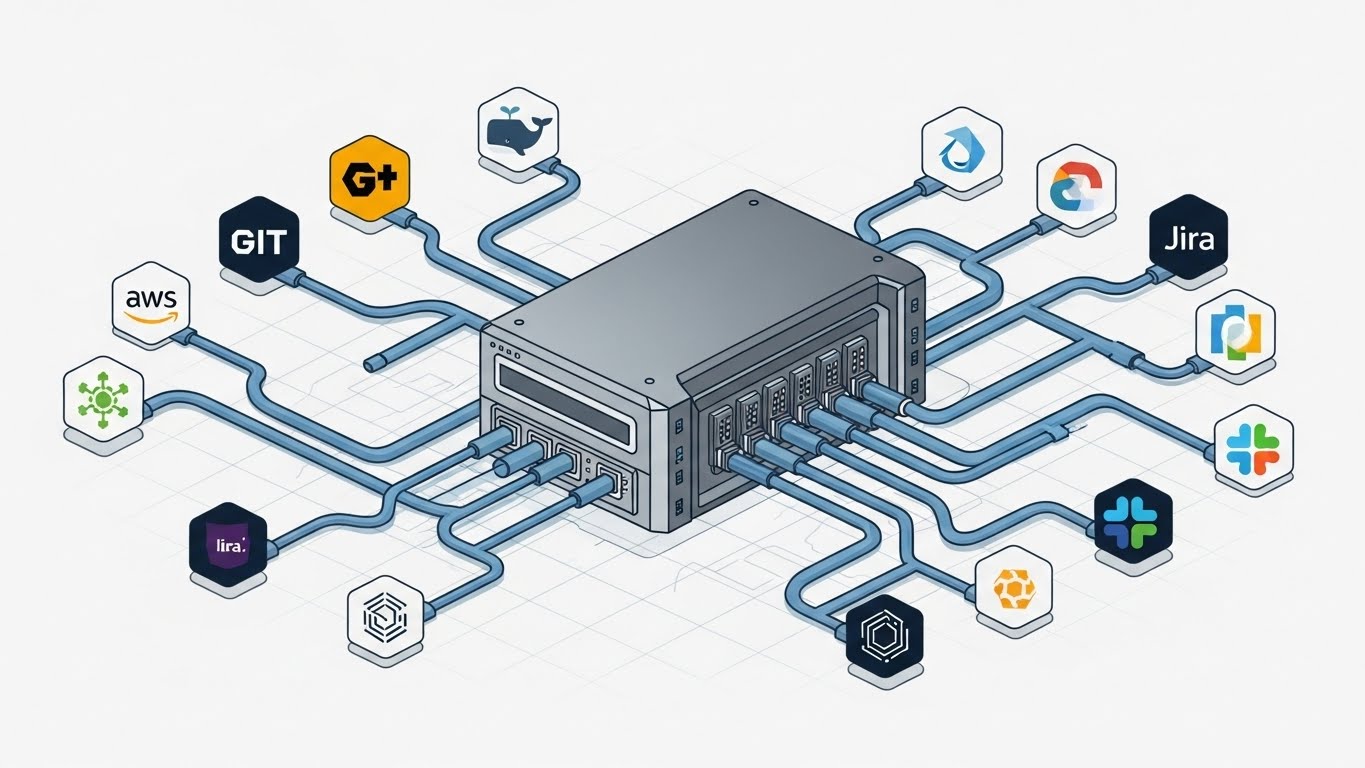
At its core, Jenkins runs on your own servers or cloud infrastructure. You install it (it's Java-based, so it works on Windows, Linux, macOS, you name it), and then you set up "pipelines" , basically scripts that define your build, test, and deploy steps. These pipelines are often written in a language called Groovy using a file called Jenkinsfile, which lives right in your code repository. Jenkins shines with its plugin ecosystem. There are over 1,800 plugins that let you integrate with just about anything: Git, Docker, AWS, Kubernetes, testing frameworks like Selenium, and more. Want to send Slack notifications after a build? There's a plugin for that. Need to scan for security vulnerabilities? Plugin city. Installation is straightforward but hands-on. You can run it on a virtual machine, in a Docker container, or even on Kubernetes with Helm charts. Once up, you manage it through a web interface where you can monitor jobs, view logs, and tweak settings.
Key Features of Jenkins
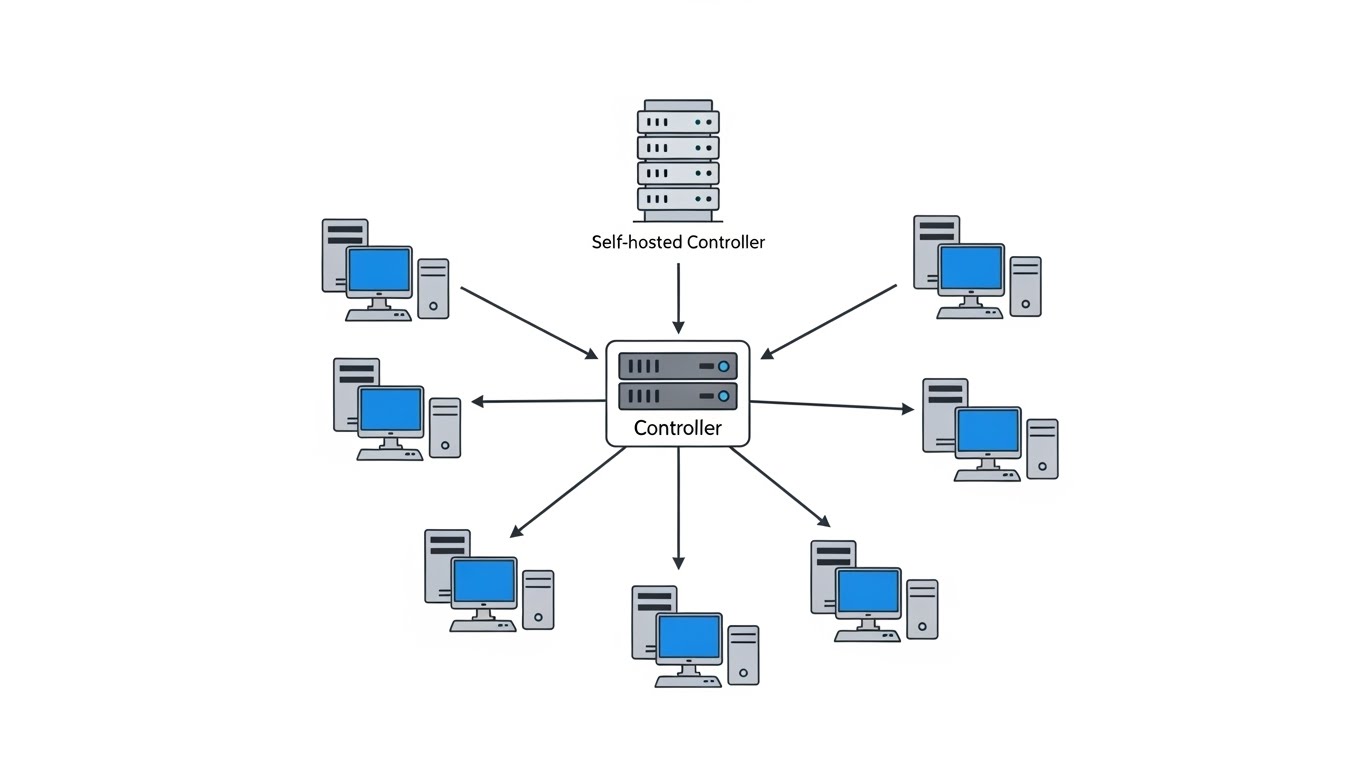
- Distributed Builds: Spread workloads across multiple machines for faster processing.
- Extensibility: Plugins galore for custom integrations.
- Pipeline as Code: Define your workflows in code, version them like your app.
- Community Support: Huge user base means tons of tutorials, forums, and events.
- Security Focus: Recent updates include a new Bug Bounty Program launched in partnership with the European Commission in late 20251
In 2026, Jenkins has seen some fresh polish. The UI got a modern redesign in mid-2025, making it look less like a relic from the early 2010s. There are also new releases like Jenkins 2.543, which improved Linux repository security. If you're into open-source contributions, they're even running Google Summer of Code projects, with mentors needed for 2026.
Pros of Jenkins
-
Ultimate Flexibility: You can customize it to fit any workflow, no matter how complex or legacy-heavy.
-
No Vendor Lock-In: It's open-source and works with any version control system, not just GitHub.
-
Cost-Effective for Scale: Free to use; you only pay for your own infrastructure.
-
Great for Large Teams: Handles heavy parallelization and multiple environments like a champ.
-
Compliance-Friendly: Ideal for air-gapped or regulated setups where you need full control.
Cons of Jenkins
- Steep Learning Curve: Setting it up and maintaining plugins can be tricky for beginners.
- Maintenance Overhead: You're responsible for updates, scaling, and security, no auto-magic here.
- Resource-Intensive: At scale, it can eat up server resources if not managed well.
- Plugin Drama: Some plugins are outdated, leading to compatibility issues or security risks.2
Pricing for Jenkins
Jenkins itself is free, open-source magic! But you'll foot the bill for hosting. That could be a cheap AWS EC2 instance (around $5-50/month for small setups) or more for enterprise clusters. Factor in time for admins to keep it running smoothly. For more on getting started, head to the official Jenkins site. If you're curious about plugins, their documentation is a goldmine.
Introducing GitHub Actions: The Modern, GitHub-Native Contender
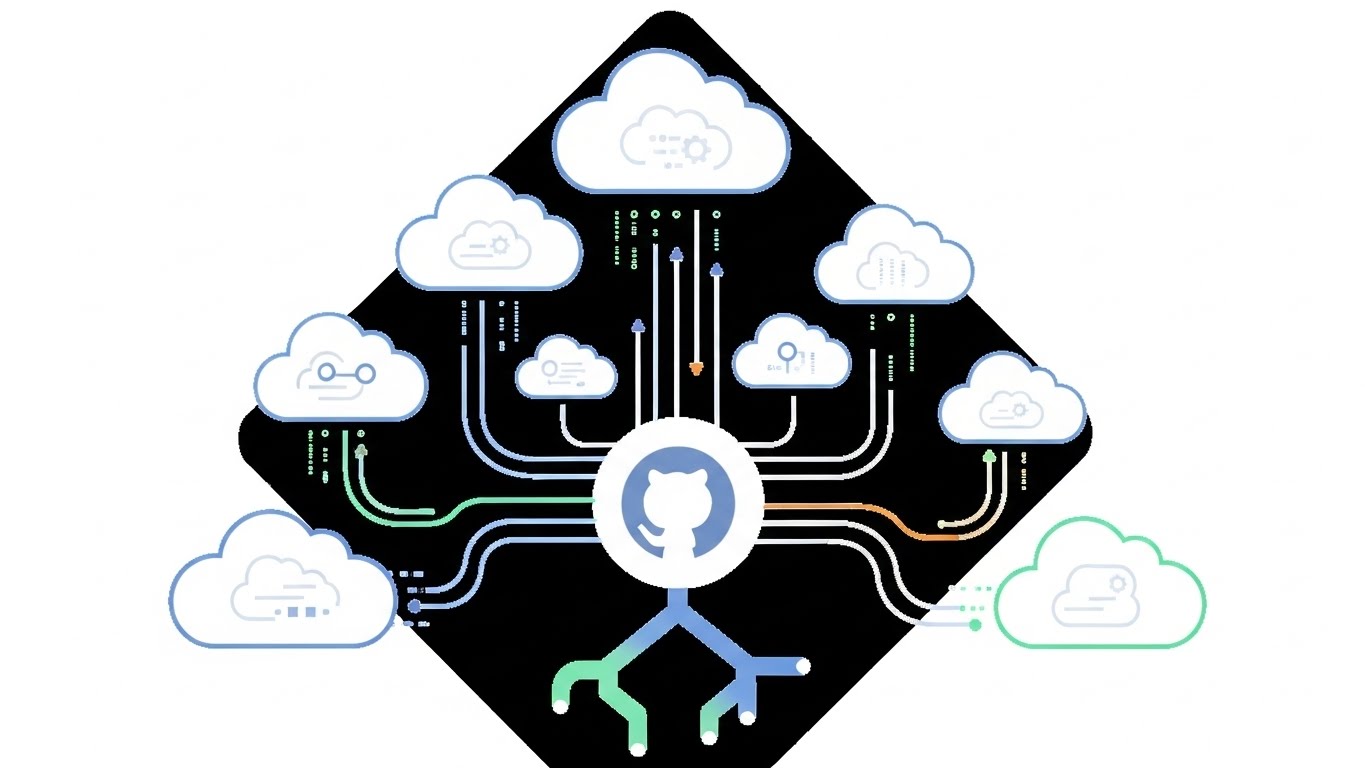
Now, let's shift gears to GitHub Actions. Launched in 2018 by GitHub (now under Microsoft), it's designed to live right inside your GitHub repositories. No separate servers needed – it's all cloud-based and tightly woven into the GitHub ecosystem. If you're already using GitHub for version control, this feels like a natural extension.
How GitHub Actions Works
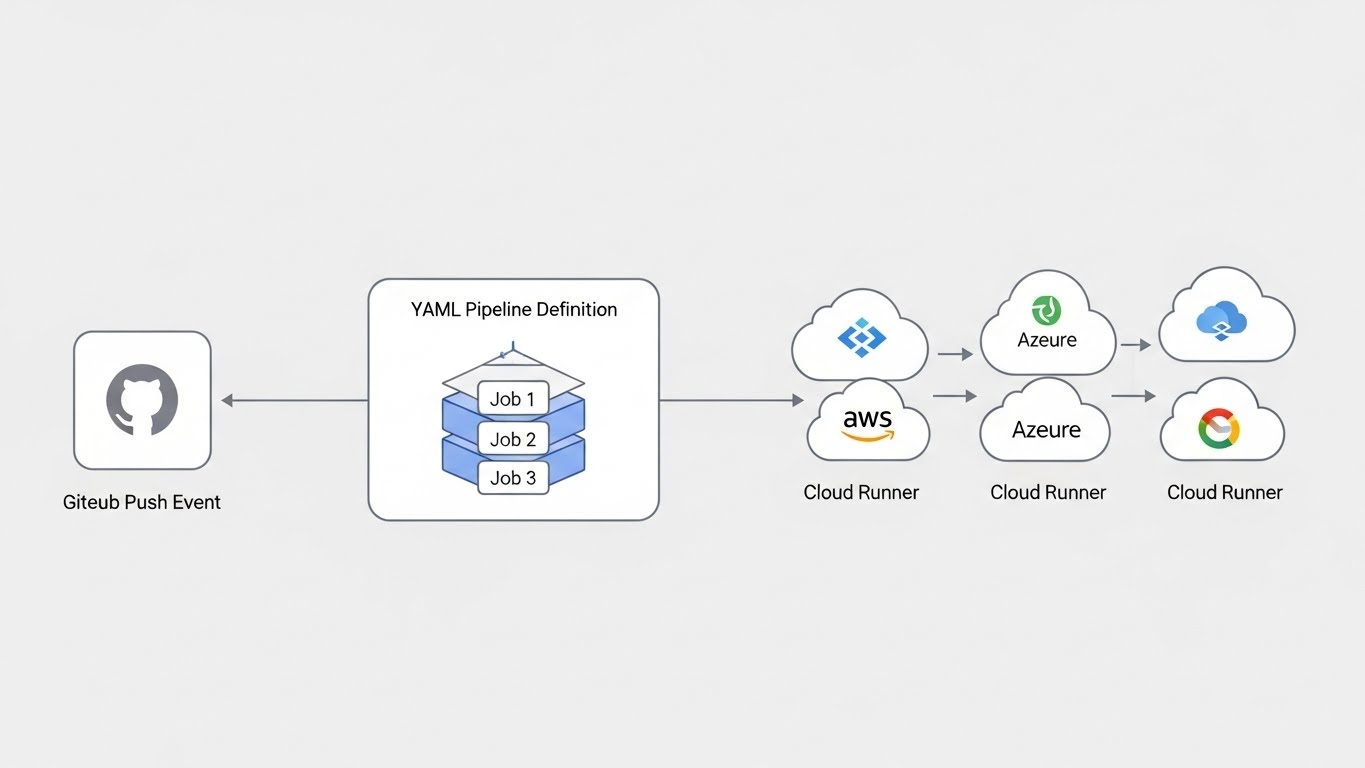
Actions are event-driven. You create "workflows" in YAML files stored in a .github/workflows folder in your repo. These workflows trigger on events like pushes, pull requests, or even scheduled times (cron-style). Each workflow has jobs, which run on "runners" , virtual machines provided by GitHub or your own self-hosted ones.
The real kicker is the Actions Marketplace. It's like an app store with thousands of pre-built actions for common tasks: building Docker images, deploying to AWS, running tests with Jest, or even posting tweets. You can mix and match these or build your own. Setup is a breeze, no installation required if you stick with GitHub-hosted runners. Just commit your YAML file, and boom, it's running.
Key Features of GitHub Actions
- Event-Driven Automation: Triggers on GitHub events for seamless integration.
- Reusable Workflows: Share actions across repos or from the community.
- Secrets Management: Built-in secure storage for API keys and credentials.
- Matrix Builds: Test across multiple OS versions or languages in parallel.
- Self-Hosted Runners: For custom hardware or private networks.
As of 2026, GitHub Actions has rolled out some sweet updates. Pricing for hosted runners dropped on January 1, 2026, making it more affordable. Workflow page performance got a boost in late 2025, and there's better support for larger-scale usages.
Pros of GitHub Actions
-
Ease of Use: YAML config is simple; no server management means quick starts.
-
Tight GitHub Integration: See builds right in your pull requests – super convenient.
-
Scalable Out of the Box: GitHub handles scaling; you focus on code.
-
Cost-Effective for Small Teams: Free for public repos and generous free minutes for private ones.
-
Security Perks: Inherits GitHub's features like OIDC for temporary credentials.
-
Speedy for Modern Workflows: Often faster than traditional setups, with better caching.
Cons of GitHub Actions
- GitHub Dependency: If you're not on GitHub, it's not ideal; limited to GitHub repos.
- Potential Costs at Scale: Usage-based billing can add up for heavy private repo usage.
- Less Flexibility for Complex Setups: Not as plugin-rich for niche or legacy needs.
- Downtime Risks: Relies on GitHub's infrastructure – if they go down, so do your builds.
Pricing for GitHub Actions
Free for public repositories with unlimited minutes. For private repos, you get 2,000 free minutes per month on the free tier, scaling up with paid plans (Pro: $4/user/month with more minutes; Team/Enterprise: custom). Self-hosted runners are free but you pay for your infra. Recent price cuts in 2026 make hosted runners cheaper, great for growing teams.
Dive deeper into the docs at GitHub Actions Documentation. For marketplace ideas, browse actions.github.com.
Key Differences Between GitHub Actions and Jenkins
Now that you know the players, let's compare them apples to apples. I'll use a table for quick glances, then explain key differences.
| Aspect | GitHub Actions | Jenkins |
|---|---|---|
| Hosting | SaaS (cloud-hosted) or self-hosted | Self-hosted only |
| Setup Time | Minutes – YAML in repo | Hours/Days – Install & configure |
| Configuration | YAML workflows | Groovy pipelines or UI jobs |
| Learning Curve | Low, especially for GitHub users | High, due to plugins and setup |
| Ecosystem | Marketplace with reusable actions | 1,800+ plugins |
| Scalability | Auto-scales with GitHub infra | Manual, depends on your servers |
| Integration | Native to GitHub; others via actions | Any VCS or tool via plugins |
| Cost | Free tier + usage-based | Free software + infra costs |
| Security | Built-in GitHub features | User-managed with plugins |
| Use for Large Teams | Good for GitHub-centric teams | Excellent for complex, multi-env setups |
| Recent Updates (2026) | Price reductions, UI improvements | Bug Bounty, UI redesign, new releases |
Setup and Configuration
Jenkins demands more upfront work. You download, install, set up agents, and manage plugins. It's like building your own car before driving. GitHub Actions? Commit a YAML file, and you're off. For beginners, this makes Actions a no-brainer. But if you need deep tweaks, Jenkins' Groovy gives you more control.3 Take a simple example: Building a Node.js app. In Actions, your YAML might look like:
1name: Node CI2on: [push]3jobs:4 build:5 runs-on: ubuntu-latest6 steps:7 - uses: actions/checkout@v48 - name: Install dependencies9 run: npm ci10 - name: Run tests11 run: npm test
Super straightforward. In Jenkins, you'd write a similar pipeline in Groovy, but first ensure the Node plugin is installed.
Scalability and Performance
GitHub Actions is designed to scale automatically because GitHub hosts the runners. Jenkins requires you to add more servers or optimize yourself. In real-world switches, teams have reported Actions cutting build times by 30-40%, thanks to better parallelism and caching.4 But for massive, distributed builds, Jenkins' master-slave architecture can handle it if you invest the time.
Integration and Customization
Jenkins wins for breadth, it integrates with everything, from Bitbucket to Azure. Actions is GitHub first but extensible via the marketplace. If your team uses multiple VCS, Jenkins is safer. For GitHub loyalists, Actions feels seamless.
Security and Compliance
Both handle secrets, but Actions has edge with GitHub's built-ins like encrypted variables and OIDC. Jenkins relies on you (and plugins) to lock things down. For regulated industries, Jenkins' self-hosted nature might appeal for data sovereignty.
Cost Breakdown
For a small open-source project: Both free. For a private enterprise with heavy usage: Actions might bill $0.008/minute beyond free tiers, while Jenkins costs whatever your cloud provider charges (e.g., $100/month for a decent VM). Actions can get pricey at scale without optimization.
Real-World Use Cases: When to Pick Each
Let's get practical. Here's how teams are using them in 2026.
When to Choose Jenkins
-
Large Enterprises with Legacy Systems: If you have on-premises servers or need to integrate with non-GitHub tools, Jenkins is your go-to. Think banks or government agencies with strict compliance.
-
Complex Workflows: Heavy parallel testing across dozens of environments? Jenkins' plugins handle
-
Multi-VCS Teams: Not tied to GitHub? Jenkins plays nice with GitLab, Bitbucket, etc. For example, a QA team running extensive automation tests in multiple browsers. Reddit discussions highlight Jenkins for its maintainability in big setups.
When to Choose GitHub Actions
-
Startups and Small Teams: Quick setup means faster iteration. No infra worries. Open-Source Projects: Free minutes and community actions make it ideal.
-
GitHub-Centric Workflows: If your code lives on GitHub, why complicate things? Example: A dev team switching from Jenkins cut pipeline times from 18 to 12 minutes, praising Actions' speed and simplicity.5Startups are flocking to it, as per 2026 trends.
Hybrid Approaches
Some teams use both! Jenkins for core builds, Actions for GitHub, specific triggers. Or migrate gradually, start with Actions for new projects.
Migration Tips: Switching from One to the Other
If you're on Jenkins and eyeing Actions, start small. Convert one pipeline to YAML and test. Tools like act (for local Actions testing) help. Going the other way? Export Actions workflows and adapt to Groovy. Common pitfalls: Underestimating Actions' costs or overlooking Jenkins' plugin updates. Always pilot first.
The Verdict: Which One Wins in 2026?
Choosing between GitHub Actions and Jenkins isn’t about picking a “better” tool. It’s about selecting the right tool for your team’s workflow, existing infrastructure, and future needs.
If your project lives on GitHub and you want a simple, integrated path from code to deployment, GitHub Actions is a strong, modern choice. Although If you crave control, have complex needs, or aren't GitHub-bound, stick with Jenkins. Its community and flexibility keep it relevant, even as some call it "dying" (spoiler: it's not, updates prove otherwise)6.
Ultimately, try both! GitHub Actions has a free tier, and Jenkins installs quickly for testing. Whichever you pick, you'll boost your productivity.
Both tools have earned strong communities and wide adoption because they solve real problems in software delivery. The key is understanding where each one shines and applying that to your specific project.
Windframe is an AI visual editor for rapidly building stunning web UIs & websites
Start building stunning web UIs & websites!